Setting Up Case Workflows and Pathways
A practical guide to designing and implementing effective case workflows and pathways in your charity or nonprofit organisation. Learn how to structure support delivery for consistency and flexibility.
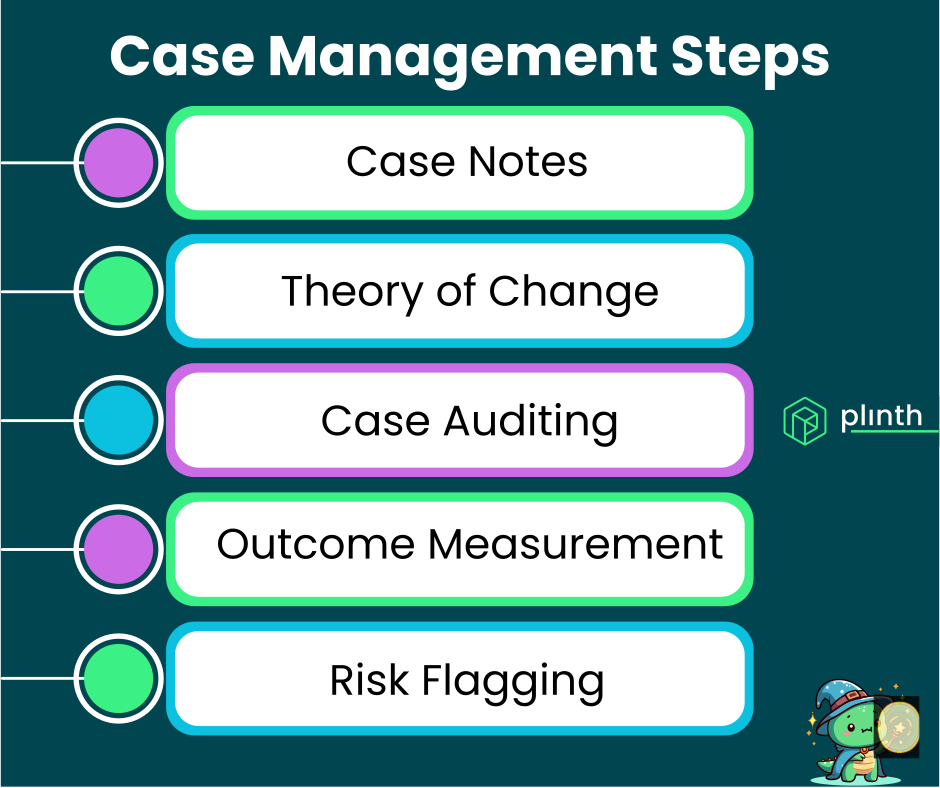
Case workflows and pathways provide structure to your support delivery by defining the routes individuals take through your services. Well-designed pathways ensure consistency while maintaining flexibility for individual circumstances.
What you'll learn: How to design workflows that match your organisation's services and support consistent delivery.
Practical guidance: Step-by-step approach to creating, implementing, and managing pathways effectively.
Common patterns: Examples of workflow structures used by different types of charities.
What Are Case Workflows?
Workflows (sometimes called pathways) are predefined routes that cases can follow through your organisation's services, providing a framework for how support is delivered.
Definition: A workflow represents a type of support journey, such as "Housing Support", "Debt Advice", or "Mentoring Programme", that cases can be assigned to.
Purpose: Workflows provide structure by grouping similar cases together, making it easier to manage caseloads, allocate resources, and report on different service areas.
Flexibility: While workflows provide structure, individual cases can still be handled flexibly within that framework – the pathway guides but doesn't rigidly constrain.
Visibility: Assigning workflows allows everyone to quickly understand what type of support someone is receiving, improving communication and handovers.
Workflows transform case management from tracking individuals to understanding journeys, enabling better service design and resource allocation.
Designing Your Workflows
Effective workflow design starts with understanding your organisation's services and how people move through them.
Map Your Services
Begin by listing all the distinct types of support your organisation provides.
Service Inventory: Document each service or programme you offer, noting how they differ in terms of duration, intensity, and outcomes.
User Journeys: Consider how people actually move through your services – do they follow defined paths, or move fluidly between different types of support?
Entry Points: Identify where people typically enter your services and what assessment or triage processes exist.
Exit Points: Understand how and when people's engagement with each service typically concludes.
Clear mapping of your services provides the foundation for workflows that reflect how your organisation actually operates.
Define Workflow Boundaries
Decide what should constitute separate workflows versus stages within a single workflow.
Distinct Purposes: Create separate workflows when the type of support is fundamentally different – for example, "Counselling" versus "Practical Support".
Different Teams: If different staff teams handle different types of work, separate workflows often make sense for workload management.
Reporting Needs: Consider whether you need to report on different service areas separately for funders or management purposes.
Avoid Over-Complexity: Too many workflows creates confusion and administrative burden – aim for clarity rather than granularity.
The right number of workflows is enough to meaningfully distinguish different types of work without creating unnecessary complexity.
Create Clear Definitions
Document what each workflow means and when it should be used.
Name: Choose clear, descriptive names that everyone will understand – avoid jargon or acronyms that might confuse new staff.
Description: Write a brief description of what the workflow covers and what type of support it represents.
Criteria: Specify when a case should be assigned to this workflow – what circumstances or needs indicate it's the right pathway.
Outcomes: Define what success looks like for cases in this workflow – what are you trying to achieve?
Clear definitions ensure consistent usage across the organisation and make training new staff easier.
Implementing Workflows in Plinth
Plinth makes it straightforward to create and manage workflows with visual colour coding and flexible assignment.
Creating Workflows
Setting up workflows in Plinth takes just a few steps.
Access Workflows: Navigate to the Cases page and select the Workflows/Pathways tab to see existing workflows and add new ones.
Add New Workflow: Click "Add New Workflow" to create a new pathway, entering a name and selecting a colour for visual identification.
Colour Selection: Each workflow can have its own colour, which appears throughout the system as a visual identifier – choose colours that are easily distinguishable.
Save and Use: Once created, the workflow immediately becomes available for assignment to new and existing cases.
Workflow creation is designed to be quick and simple so you can iterate as your understanding of needs evolves.
Assigning Cases to Workflows
Cases can be assigned to workflows at creation or updated later.
At Case Creation: When creating a new case, you can optionally select a workflow from the dropdown – this is not required but is recommended for organised tracking.
Updating Existing Cases: Click into any case and update its workflow assignment if circumstances change or if an initial assignment was incorrect.
Viewing by Workflow: Filter the cases table by workflow to see all cases following a particular pathway, useful for service managers and reporting.
No Workflow Option: Cases can exist without a workflow assignment for situations that don't fit defined pathways or during triage before assignment.
Flexibility in assignment means workflows support your processes rather than constraining them.
Visual Organisation
Workflow colours provide at-a-glance understanding of case portfolios.
Colour Swatches: Each workflow displays with its colour swatch throughout the system – in case lists, case details, and reports.
Quick Identification: Colours allow managers and case workers to quickly scan a caseload and understand the mix of work without reading every detail.
Dashboard Views: When viewing cases in table or card formats, workflow colours create an immediate visual summary of service distribution.
Consistent Appearance: The same colour appears everywhere the workflow is referenced, building familiarity and speeding up navigation.
Visual cues reduce cognitive load and make navigating larger caseloads much more efficient.
Common Workflow Patterns
Different types of organisations use different workflow structures depending on their services and operating models.
Service-Based Workflows
The most common pattern organises workflows around distinct service offerings.
Example: A community centre might have workflows for "Benefits Advice", "IT Training", "Social Groups", and "Emergency Support".
When to Use: When you offer clearly distinct services with different purposes, timescales, or staff teams.
Benefits: Clean separation for reporting, clear allocation of cases to specialists, simple to understand.
Considerations: People receiving multiple services may need multiple cases, or you may need a way to track cross-service support.
Stage-Based Workflows
Some organisations structure workflows around stages of a journey rather than service types.
Example: A homelessness charity might use "Crisis Response", "Stabilisation", "Move-On Support", and "Tenancy Sustainment".
When to Use: When individuals progress through defined stages and the stage they're at determines the type of support needed.
Benefits: Clear sense of progression, easy to see where people are in their journey, natural points for review.
Considerations: Not all journeys are linear – some people may need to move backwards or skip stages.
Intensity-Based Workflows
Workflows can reflect the intensity of support someone receives rather than its type.
Example: A mental health service might use "Crisis Support", "Intensive Support", "Regular Support", and "Maintenance Contact".
When to Use: When the same general type of support is provided but at different intensities based on need.
Benefits: Clear workload implications, easy to understand resource allocation, simple escalation paths.
Considerations: May need to be combined with other categorisation for more complex services.
Funder-Based Workflows
Some organisations need to track cases by funding source for reporting purposes.
Example: An advice service might have "Citizens Advice Contract", "Local Authority Funded", "Lottery Project", and "Unrestricted".
When to Use: When different funders require separate reporting on the cases they fund.
Benefits: Simplified funder reporting, clear attribution of activity to funding sources.
Considerations: Can feel administrative rather than support-focused; consider whether this is the primary or secondary way to organise cases.
Most organisations use a combination of these patterns, adapting to their specific needs and reporting requirements.
Managing Workflows Over Time
Workflows aren't set in stone – they should evolve as your organisation and services change.
Regular Review
Periodically assess whether your workflows still reflect how you work.
Usage Patterns: Review which workflows are heavily used and which are rarely used – empty or underused workflows may need reconsideration.
Staff Feedback: Ask case workers whether the workflow options make sense and capture the work they're actually doing.
Reporting Needs: Check whether current workflows support the reporting you need to provide to funders and stakeholders.
New Services: When launching new services, consider whether existing workflows accommodate them or whether new ones are needed.
Annual review of workflows helps keep your system aligned with operational reality.
Making Changes
When workflows need to change, plan the transition carefully.
Adding Workflows: New workflows can be added at any time without affecting existing cases – they simply become available as additional options.
Renaming Workflows: If a workflow's name becomes outdated, rename it to maintain clarity – existing case assignments are preserved.
Retiring Workflows: If a workflow is no longer needed, consider whether to delete it or leave it inactive – deleting removes it from options but cases assigned to it need reassignment.
Merging Workflows: If two workflows become essentially the same, pick one to keep and reassign cases from the other.
Changes to workflows should be communicated to all users to avoid confusion.
Frequently Asked Questions
How many workflows should we have?
There's no perfect number, but most organisations find between 3-10 workflows provides the right balance.
Too Few: If everything is in one or two workflows, you lose the benefit of differentiation and reporting becomes less meaningful.
Too Many: If you have dozens of workflows, the system becomes confusing and people struggle to know which to choose.
Right Balance: Enough to meaningfully distinguish different types of work, few enough that the options are clear and memorable.
Start with fewer workflows and add more as genuine needs emerge rather than trying to anticipate every possibility upfront.
Can one case be in multiple workflows?
In most systems including Plinth, a case is assigned to one workflow at a time, but there are ways to handle complex situations.
Sequential Workflows: A case can move from one workflow to another as someone's journey progresses – the history is preserved.
Multiple Cases: If someone is genuinely receiving distinct types of support simultaneously, creating separate cases may be appropriate.
Primary Workflow: If someone receives mainly one type of support with some additional elements, use the primary workflow and note the additional support in case notes.
Consider what you're trying to achieve with workflow categorisation and design accordingly.
What if someone doesn't fit any workflow?
It's normal to have cases that don't neatly fit predefined categories.
General Workflow: Consider having a general or miscellaneous workflow for genuinely uncategorisable cases, but avoid overusing it.
Review and Refine: If many cases don't fit, your workflows may need redesigning to better reflect actual work.
No Workflow: In Plinth, cases can exist without workflow assignment if truly appropriate – this is valid for unusual situations.
Workflows should accommodate the majority of cases; occasional exceptions are fine.
Recommended Next Pages
The Complete Guide to Case Management – Comprehensive coverage of case management principles and features.
Case Management Best Practices for Nonprofits – Expert recommendations for effective case management.
Managing Case Status: Open, Paused, and Closed – When and how to transition cases through different statuses.
How to Track Case Interactions and Notes – Best practices for documenting case activity.
Last updated: July 2026
For more information about implementing case workflows in your organisation, contact our team or schedule a demo.