How it works
Integrations
Plinth connects to the databases and grant management systems you already use — so you can run deeper analysis on applications without starting from scratch.

Written by
Jess O'Neill
Partnerships Lead
We understand it's a bit daunting to integrate systems — but Plinth makes that an easy process. AI helps you map fields, sync at any stage of the grant cycle, and keep a clear record of every push and pull.
Below is an overview of how our Salesforce and Blackbaud integrations work, step by step.
Salesforce
Our Salesforce integration lets you sync applications at any stage of the grant management process. For example, you can pull applications from Salesforce into Plinth, run your due diligence there, and push back to Salesforce when you're ready.
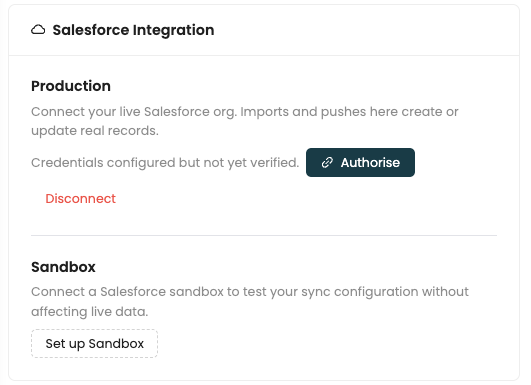
Connect your org
Once you follow the steps to integrate, you'll authorise your production or sandbox Salesforce org. Credentials are verified before any data moves.
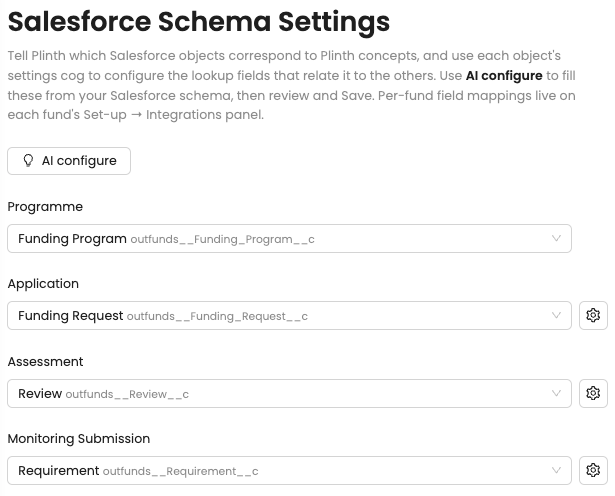
Set up your schema
Next you'll configure schema settings — connecting which Salesforce objects correspond to Plinth concepts. You can also use AI configure to fill these from your Salesforce schema. What you call Funding Programmes in Salesforce maps to a Fund in Plinth, and so on.
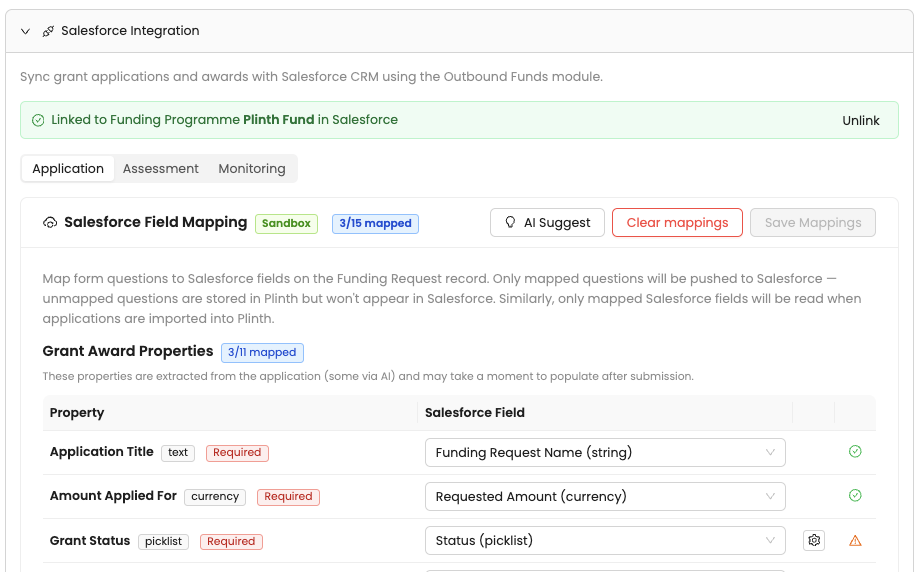
Map your fields
Head to the setup section of the fund you're working on and map field names for Application, Assessment, and Monitoring. Our AI is there to assist at every step.
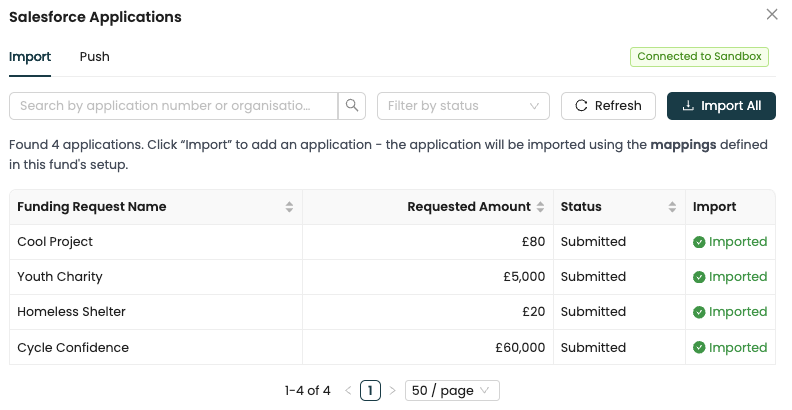
Import or push applications
With everything mapped, sync applications at any stage. Import from Salesforce into Plinth:
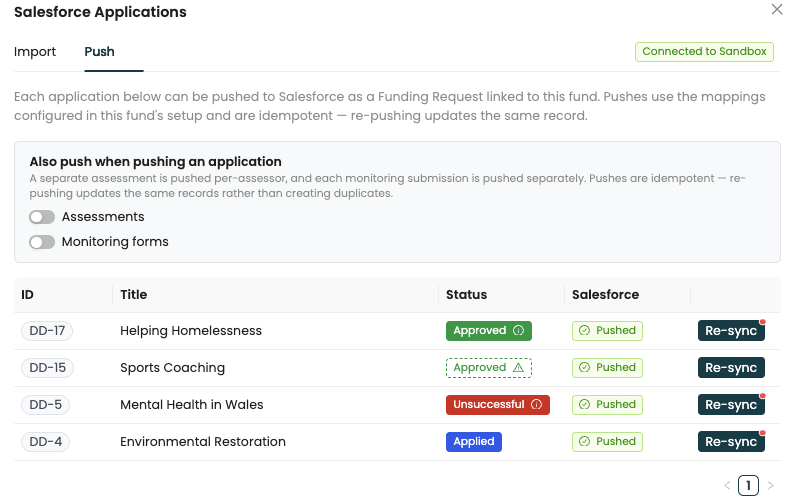
Or push applications back to Salesforce — including any assessments or monitoring forms associated with the application:
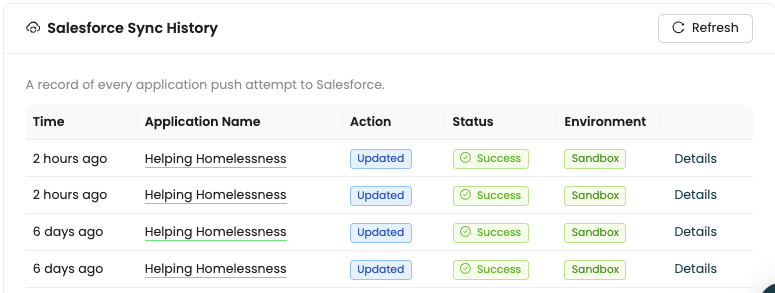
Track your sync history
In fund settings you can see a history of every sync between Salesforce and Plinth — so you always know what moved, when, and whether it succeeded.
That's the Salesforce flow: connect, map, sync — with AI helping you at each step.
Blackbaud
You can currently pull applications from Blackbaud Grantmaking into Plinth and continue the grant management process there. Transferring applications from Plinth back into Blackbaud isn't supported yet.
Connect Blackbaud
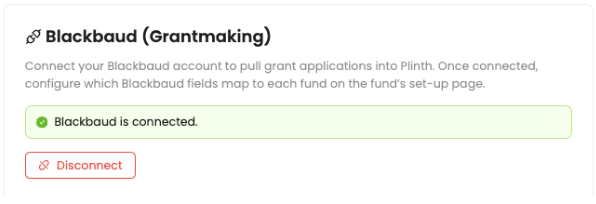
Connect your Blackbaud account to pull grant applications into Plinth. Once connected, configure which Blackbaud fields map to each fund on the fund's set-up page.
Map Blackbaud fields
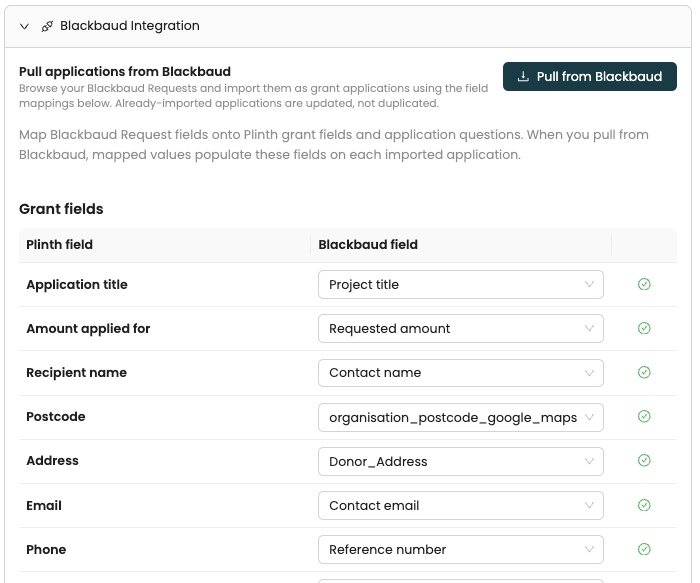
Map Blackbaud Request fields onto Plinth application and grant fields — so CRM information for your partners and application data sync correctly when you pull.
Applications in your fund
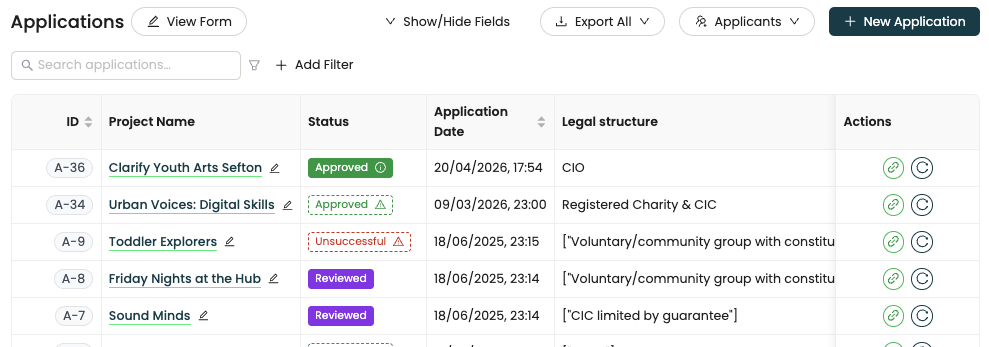
Once synced, applications show up in your fund — ready for due diligence, assessment, and the rest of your Plinth workflow.
Grant Capture extensionComing soon
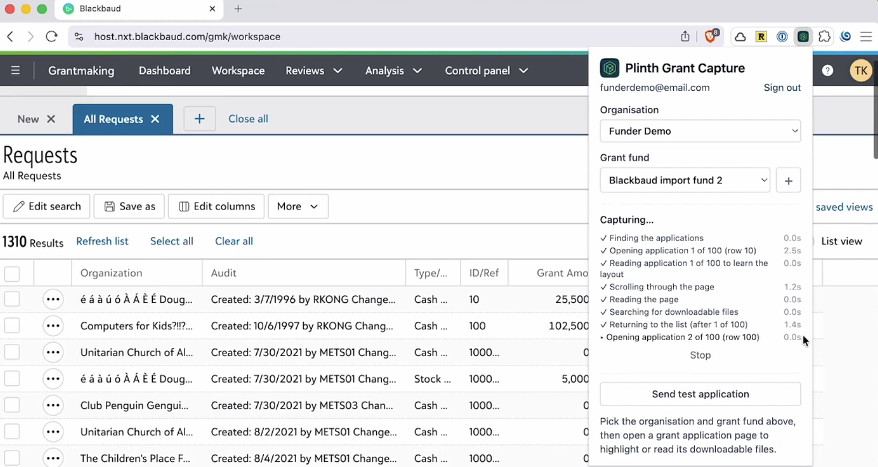
To make the whole process easier, we're also building a Chrome extension that lets you import Blackbaud applications into Plinth with a button click — no manual export required.
Write-ups on Foundant and Fluxx integrations are also coming soon.
Want to see it on your stack?
Book a demo with the team and walk through Salesforce or Blackbaud integration on your own data.